
10 PC Hardware Terms Every New PC Gamer Needs to Know Before Buying Anything
Navigate this article
Introduction
New to PC gaming? Staring at spec sheets full of acronyms like CPU, GPU, SSD, and VRAM can be overwhelming. But don’t worry these terms are the building blocks of your future gaming rig. Understanding them will help you pick parts that actually improve your gameplay instead of wasting money.
In this friendly guide, we’ll explain the ten most important hardware concepts in plain English, from the CPU (your PC’s “brain”) to whether that high-refresh monitor is worth it. By the end, you’ll be equipped to make smart buying choices and get the most bang for your buck.
Quick Reference Guide
- CPU (Central Processing Unit): Think of the CPU as your PC’s brain. It runs the game’s code and tells everything else what to do.
- GPU (Graphics Processing Unit): The GPU (graphics card) is the muscle for visuals. It handles rendering images, textures, and effects. Modern GPUs pack hundreds of cores to speed up graphics calculations.
- RAM (Memory): RAM is your system’s short-term memory (fast storage for active data). More RAM (like 16GB) lets games load textures and assets quickly.
- VRAM (Video Memory): VRAM is a special type of RAM built into the graphics card. It holds the large textures and frame data your GPU needs.
- Storage (SSD vs. HDD): Storage holds all your games and files. SSDs are much faster than HDDs, cutting load times dramatically.
- Motherboard: The motherboard is the backbone circuit board. It connects your CPU, RAM, GPU, drives, and ports in one system.
- PSU (Power Supply Unit): The PSU provides power. Its wattage rating tells you the maximum power it can deliver. Too little and your PC might crash; too much and you pay extra for nothing.
- Cooling/TDP: All parts generate heat. TDP (Thermal Design Power) is how much heat a chip is expected to output. Good cooling (fans or liquid) keeps your CPU/GPU from overheating and slowing down.
- Monitor (Resolution & Refresh Rate): Resolution (e.g. 1080p, 4K) determines image clarity, and refresh rate (e.g. 144Hz) determines how many frames your display can show per second. A high-refresh screen only feels smoother if your GPU can pump out enough FPS.
- Input Devices (Keyboard/Mouse vs Controller): PCs support both setups. Keyboard/mouse offer pinpoint control (great for shooters), while controllers give analog inputs (better for racing or platformers). Modern wireless controllers add minimal lag compared to wired, so either can work depending on the game.
By knowing these terms, you’ll have a quick reference for the key hardware factors that matter for gaming. Let’s dive in and break each one down in simple terms.
CPU (Central Processing Unit)
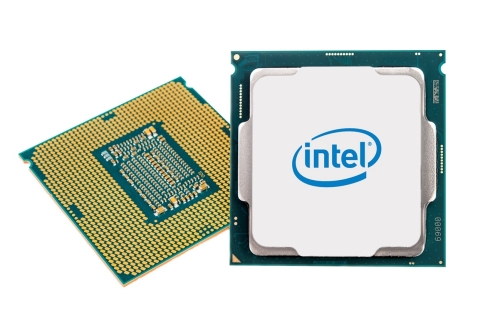
The CPU is the heart and brain of your PC. It runs the game’s code and coordinates everything your system does. A faster CPU lets your games run more smoothly and handle more calculations at once. Think of it like a very fast multitasker: it takes instructions from the game (like AI, physics, and input) and sends work to the rest of the hardware.
- Cores and Speed: Modern CPUs have multiple cores. Each core can handle its own tasks (multitasking), so more cores/threads can help when games do many things at once. However, gaming still relies a lot on a CPU’s clock speed (measured in GHz). If you see a CPU with a high clock speed, it can push single threads of a game faster.
- Why It Matters: Some games (especially strategy or simulation games) depend heavily on the CPU. A weak CPU can bottleneck your system: even the best GPU won’t reach full potential if the CPU can’t keep up.
- Installation Note: CPUs fit into a socket on the motherboard. Make sure the CPU socket type matches the board (e.g., Intel vs AMD sockets). Each new CPU generation might need a different socket.
In short, the CPU handles the “thinking” in games. When shopping, compare both core count and clock speed. For most modern games, something like a recent 4- to 8-core CPU at ~3- 4 GHz is solid for high settings.
GPU (Graphics Processing Unit)
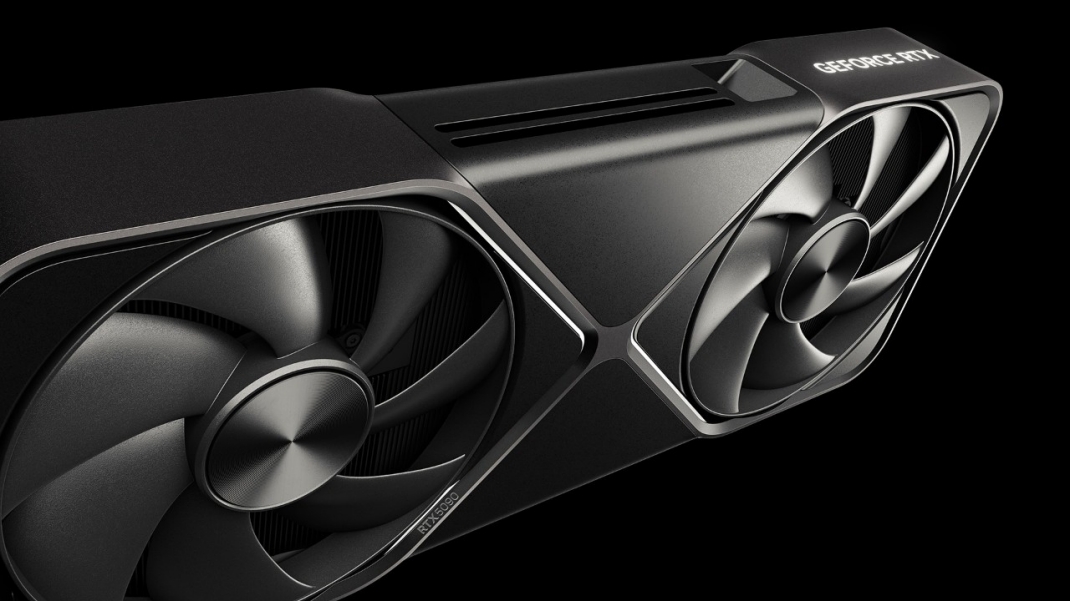
The GPU, or graphics card, is your PC’s visual powerhouse. Its job is to render everything you see on-screen characters, environments, lighting, shadows, and special effects. A GPU runs tons of math operations in parallel to draw pixels fast, giving you high frame rates and smoother graphics.
GPUs today have hundreds or even thousands of small cores specialized for graphics tasks. This parallel design means they can spit out many details at once. In practical terms, a powerful GPU lets you play games at higher resolutions (like 1440p or 4K) and higher settings (better textures, effects, and frame rates).
- VRAM (Video Memory): Each graphics card has its own dedicated RAM called VRAM. This is where textures, frame data, and buffers live while gaming. More VRAM lets the GPU hold larger textures and more frames in memory before writing to slower main RAM. Games with high-res textures (or running at 4K) usually need more VRAM (8GB or more).
- Discrete vs Integrated: Most gaming PCs use discrete GPUs (separate cards you install in a slot). Integrated GPUs (built into a CPU) exist on laptops or budget rigs, but they are much weaker. For real gaming, a discrete GPU from Nvidia or AMD is recommended.
- Cooling: GPUs run hot under load, so they usually have built-in fans or liquid coolers. Make sure your case has enough airflow for the graphics card’s cooling.
In short, invest in a good GPU if you want high frame rates or play graphically intensive games (AAA titles, VR, etc.). If your GPU is underpowered, you’ll see low FPS or have to turn settings down. As a rule of thumb: match your GPU capability to your monitor’s resolution and refresh rate no point in a 4K card if you only have a 1080p display.
RAM (Random Access Memory)
RAM is your PC’s short-term memory. It temporarily stores data that the CPU and GPU need to access right away, like game assets, textures, and variables. When you launch a game, it loads lots of data into RAM so the CPU/GPU can grab it quickly without reading from the slower storage drive all the time.
- Capacity Matters: Games today often recommend 8GB or 16GB of RAM. 16GB has become the sweet spot for modern gaming. For example, many sources note that “16GB [is] commonly selected for modern gaming” because it handles big game data plus background tasks. If you only have 8GB, you might see “out of memory” issues or slow-downs when multitasking (like gaming while streaming).
- Speed and Channels: RAM has speeds (e.g. DDR4-3200MHz) and runs in single- or dual-channel modes. Higher speeds and dual-channel kits can slightly improve performance, but capacity is usually more important for games.
- Upgrading: If you can, install RAM in matched pairs so dual-channel mode works. Also, check your motherboard’s supported RAM type (DDR4 vs DDR5, max speed).
In plain terms, more RAM lets your system keep the game world loaded. It’s not flashy, but if you skimp on RAM, you might get stutters, crashes, or forced use of the slow disk during play. Nowadays, try to have at least 16GB to feel comfortable with new titles.
VRAM (Video Memory)
VRAM is the special memory built into your graphics card. You can think of VRAM as extra storage that the GPU uses for graphics data. It holds things like textures (surface details of objects), frame buffers (the image being drawn), and any other assets the GPU needs quickly.
Because GPUs render visuals, they need very fast memory on the card itself. When the game asks the GPU to draw a scene, the textures and geometry data come from VRAM. If a game’s settings or resolution exceed your VRAM capacity, you’ll see hitching or texture pop-in as the GPU shuffles data back and forth to slower system RAM or storage.
- How Much Do You Need? 4GB or 6GB of VRAM used to be enough for 1080p gaming, but modern games often recommend 8GB or more, especially at higher resolutions. For 1440p gaming, 8 - 12GB VRAM is common, and 4K games often need 10 - 12GB+.
- Integrated vs Dedicated: Integrated GPUs (like those in some CPUs or laptops) share the main system RAM for graphics, which means much less memory available and slower performance. Discrete GPUs have dedicated VRAM, which is faster and plentiful.
- Upgrading: You can’t upgrade VRAM like system RAM; you get what’s on the GPU. So pick a card with enough VRAM for the games you plan to play.
In short, more VRAM means your GPU can store high-resolution textures and graphics effects. If you try to play at settings that exceed your VRAM, the game will struggle to render frames smoothly.
Storage (SSD vs HDD)
Your games and operating system live on a storage drive. There are two main types:
- HDD (Hard Disk Drive): These use spinning disks to store data. They offer lots of space for cheap (like 2TB or more at low cost per GB). However, HDDs are slow. Loading a big game or booting Windows can take minutes. In gaming, HDDs mainly show their weakness in long load times and level streaming, but they can run games fine once loaded.
- SSD (Solid State Drive): SSDs use flash memory (no moving parts). They are much faster than HDDs. Boot times, game load screens, and file transfers are often 2-10× faster on SSDs. For example, an SSD might load a game in 10-15 seconds versus 30-40 seconds on an HDD. This snappier performance means you spend less time staring at loading bars. Most modern gaming PCs have an SSD for the operating system and main games.
Why It Matters: Speed here doesn’t affect your FPS once in-game; it affects how fast the game starts and loads new levels. Many guides recommend an SSD for the OS and favorite games, and an HDD for bulk storage of old or infrequent games. That way, you get fast load times where it counts, without paying for a huge SSD.
Tip: If budget allows, go for at least a 500GB SSD (NVMe M.2 SSDs are very fast if your motherboard supports them). Use that for Windows and the games you play most. If you accumulate many games, a larger HDD can store the rest.
Motherboard
The motherboard is the main circuit board that everything plugs into. It’s often called the “backbone” of the PC. Every component CPU, RAM, GPU, drives, even case fans connects through the motherboard.
A good way to think about it: the motherboard defines what parts are compatible and how they talk to each other. For example, it determines:
- CPU Socket and Chipset: This tells you which CPUs you can install. Intel and AMD use different sockets. Each generation may need a different socket (like AM4 for older AMD, LGA 1700 for latest Intel).
- RAM Slots: The type (DDR4 vs DDR5) and number of DIMM slots (2 or 4) on the board limit your memory configuration.
- Expansion Slots (PCIe): These are where you plug in GPUs, Wi-Fi cards, and other add-ons. Most gaming boards have at least one PCIe x16 slot for a graphics card.
- Storage and USB Ports: The motherboard provides SATA ports (for SSDs/HDDs) and USB headers for your front-panel ports.
Choosing a Motherboard: Besides socket and compatibility, consider form factor (ATX vs microATX vs Mini-ITX) which affects case size, and features like Wi-Fi, Ethernet speed, number of USB ports, and VRM quality for power delivery. A gaming motherboard isn’t too fancy, but it should support the number of M.2 SSDs, RAM slots, and I/O ports you need.
In short, the motherboard is the central hub that connects all hardware. As a beginner, just ensure the board matches your CPU brand and supports enough slots/ports for future upgrades. It’s not a performance booster on its own, but picking the wrong motherboard can block you from using the latest CPU or DDR memory.
Best Prebuilt Gaming PCs on Amazon Under $3000 (RTX 5060–5080) 2026
If you prefer not to build it yourself, check out our guide to the best high-end prebuilt gaming PCs available right now.
Read article →PSU (Power Supply Unit)
The PSU is what powers all the components. It converts wall electricity into the various voltages the PC parts need. Its rating (in watts) tells you the maximum total power it can deliver to your system.
- Wattage Needs: The total wattage should exceed the combined draw of your CPU, GPU, and other components. For example, a high-end gaming PC with a powerful CPU and top GPU might need 750W or more. A mid-range system might use 500 - 600W. A guide says if the PSU doesn’t supply enough power, your PC can crash or even fail to turn on.
- 80 Plus Rating: Look for an “80 Plus” efficiency rating (Bronze, Gold, etc.). Higher ratings mean the PSU wastes less power as heat, so it’s more efficient and runs cooler.
- Cables & Connectors: Make sure the PSU has the right cables (e.g., enough PCIe 8-pin connectors for your GPU, and SATA power for drives).
Why It Matters: A weak or cheap PSU is a hidden danger. If the power supply can’t keep up, your system can crash under load or even get hardware damage. Oversizing slightly (20 - 30% headroom) is common to handle power spikes. On the flip side, a PSU that’s way too large for a small system wastes money and may not even run efficiently at low load.
In short, pick a reputable PSU that meets or exceeds your power needs. Use online PSU calculators or guides like the one we cited to estimate wattage. Remember: power quality is just as important as quantity. Cheap PSUs with poor regulation can damage components, whereas a certified unit will protect them.
Cooling (Fans, Heatsinks, TDP)
All PC parts generate heat, especially the CPU and GPU. Cooling is critical to keep your system stable and quiet. If components get too hot, they’ll thermal throttle (slow down) to avoid damage.
One key concept is TDP (Thermal Design Power). TDP is the amount of heat (in watts) that a processor or graphics card is expected to output under load. It’s not the absolute max power draw, but it gives a baseline for what your cooler needs to handle.
- CPU Coolers: Stock coolers come with some CPUs, but for gaming, an aftermarket air cooler or liquid cooler is often better. Make sure the cooler’s rated capacity matches your CPU’s TDP. If your CPU is a 125W TDP chip, you want a cooler that can handle that heat.
- GPU Cooling: Graphics cards usually include their own fans or even liquid cooling. Just ensure your PC case has enough airflow so hot air can escape.
- Case Fans: Good airflow in the case is important. You want cool air coming in (intake fans at front or bottom) and hot air going out (exhaust at rear/top). More fans can help reduce temperatures and fan noise.
Good cooling also affects noise. An efficient cooling setup can run fans slower for the same cooling, making the system quieter.
Why It Matters: If you skimp on cooling, your CPU/GPU will overheat under heavy gaming. Overheating forces them to throttle, hurting performance. In extreme cases, it can even reduce component lifespan. A recommended practice is to keep temps well below maximum (e.g., under 85°C during load for many CPUs). As one expert note says, maintaining efficient heat dissipation lets CPUs and GPUs sustain higher clocks longer.
In summary: don’t ignore cooling. A decent cooler and good airflow keep your hardware running at its best. Always check that cooler fits your CPU socket and case.
Display (Resolution & Refresh Rate)
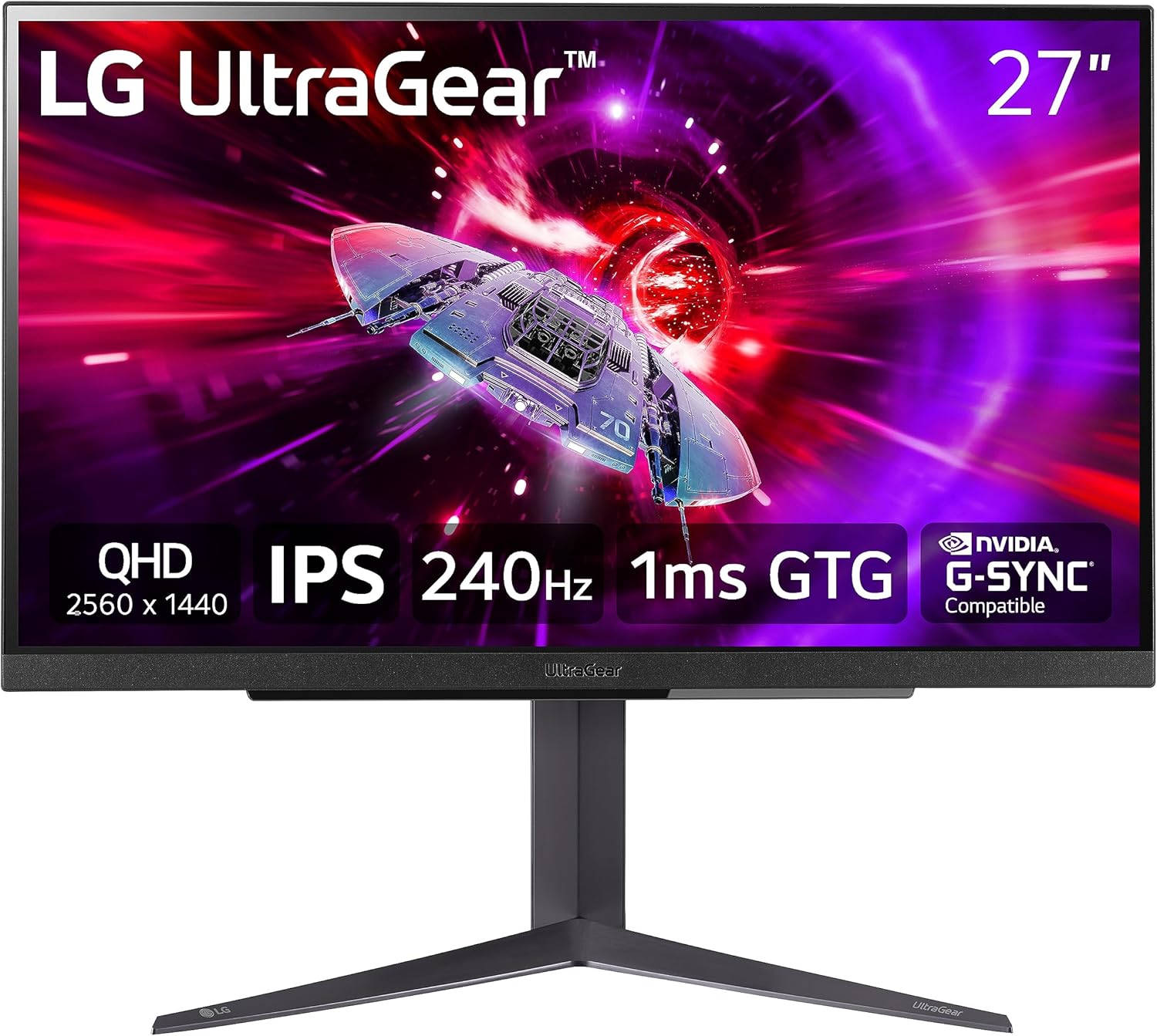
Your monitor is the final piece of hardware that shows all the graphical magic. Two terms matter here: resolution and refresh rate.
- Resolution: This is the number of pixels on the screen (width × height). Common gaming resolutions are 1920×1080 (1080p), 2560×1440 (1440p), and 3840×2160 (4K). Higher resolutions give sharper images but demand more from the GPU. For example, 4K has four times the pixels of 1080p, so it needs a much stronger graphics card to maintain high frame rates.
- Refresh Rate: Measured in Hertz (Hz), this is how often the monitor updates the image each second. A 60Hz monitor refreshes 60 times per second, a 144Hz monitor 144 times, etc. A higher refresh rate allows for smoother motion in games but only if your PC can output enough frames to match it.
As Intel explains, if your monitor is 144Hz but your GPU can only deliver 30 FPS, you won’t actually see 144 updates (the monitor can’t show frames that aren’t there). You need both a fast GPU and a high-refresh monitor to get the benefit.
Why It Matters: Competitive or fast-paced games (shooters, racing) feel much smoother on 120Hz/144Hz+ screens, but only if the GPU keeps pace. If you mostly play slower-paced or single-player games, 60Hz might be fine. Also consider sync tech: G-Sync (Nvidia) or FreeSync (AMD) can help align the GPU output to the monitor’s refresh to reduce tearing and lag.
In short, match your display to your build. A budget build might prioritize 1080p/60Hz. A high-end rig often goes for 1440p or 4K with 144Hz to unlock the crispest, fastest experience. Remember: monitor tech is hardware too, don’t forget cables (DisplayPort/HDMI versions) that support the needed resolution and refresh.
Best Gaming Monitors Under $400 (2025 Buyers Guide)
Looking to upgrade your display? Check out our guide to the best budget gaming monitors with high refresh rates.
Read article →
Input Methods: Keyboard & Mouse vs Controller
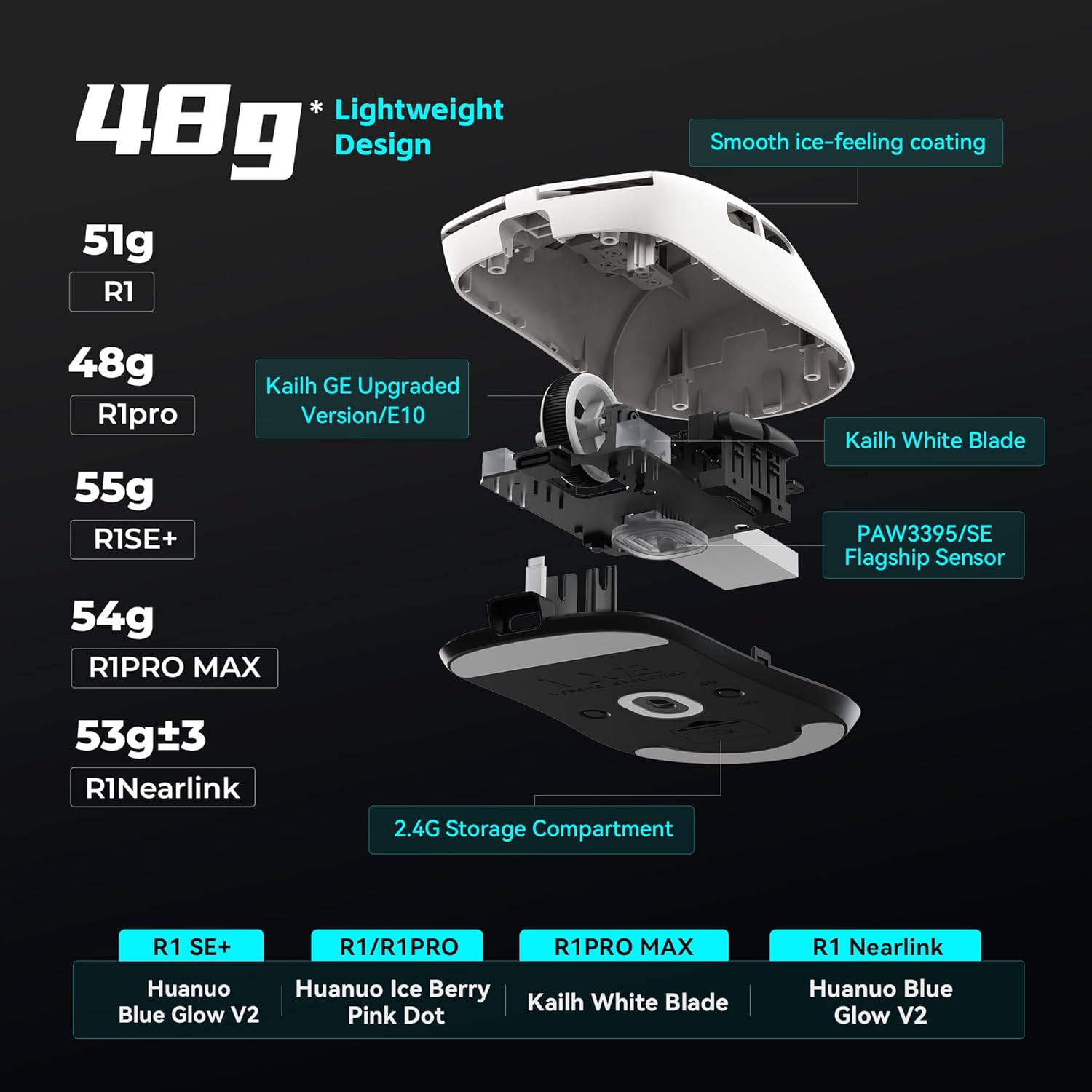
PCs let you game with keyboard + mouse or game controllers (like Xbox or PlayStation controllers). Each has its own pros and cons:
| Feature | Keyboard & Mouse | Controller (Gamepad) |
|---|---|---|
| Precision | Very high precision aiming (especially mouse) | Lower precision (analog sticks), best for movement |
| Ergonomics | Involves desk/table setup | Comfortable handheld; good for couch gaming |
| Buttons/Inputs | Many keys, hotkeys, + two mouse buttons | Fewer buttons (usually 12-16) and analog triggers |
| Game Genres | Preferred for FPS, RTS, MOBAs, shooters | Preferred for racing, platformers, fighting games |
| Setup | Plug-in or wireless dongle (mouse/keyboard); possible latency | Wired (USB) or wireless (Bluetooth/USB dongle) |
| Learning Curve | Steeper for beginners (many keys) | More intuitive layout, especially for casual play |
- Keyboard/Mouse: This classic PC combo excels in games that need quick aiming or many commands. For example, first-person shooters and strategy games almost always favor mouse aim and keyboard shortcuts. The tradeoff is it can be less comfortable if you lounge on a couch, and it involves remembering many keys.
- Controller: Controllers (like Xbox or PS pads) give you analog sticks and triggers. This is great for racing, driving, or platforming games because you get gradual control (press triggers halfway for less throttle, etc.). Controllers are also designed for comfort and living-room play.
Best Budget Gaming Mouse 2026 Edition
Find the perfect high-performance gaming mouse for your setup without breaking the bank.
Read article →
Frequently Asked Questions (FAQ)
How much RAM do I really need for gaming?
These days, 16GB of RAM is a good baseline. It lets you run modern games plus background apps comfortably. If you’re on a tight budget, 8GB can work for lighter or older games, but you may hit limits with big new titles or if you like streaming/recording. If you run very heavy multitasking (streaming, video editing alongside gaming), 32GB can help, but it’s not necessary for most.
Do I need to upgrade to an SSD for better performance?
Absolutely consider it. SSDs don’t increase FPS, but they drastically cut loading and boot times. Games install, load levels, and launch much faster on an SSD. It’s common to use an SSD for your OS and favorite games, and a larger HDD for other storage. Even a mid-tier SSD (e.g. 500GB NVMe) will make your system feel snappier.
CPU or GPU: which is more important for gaming?
Generally, the GPU is king for game performance (it pushes frames). A weak GPU will bottleneck even a top CPU in most modern games. However, a very weak CPU can also bottleneck a strong GPU in CPU-intensive games (like simulation or strategy titles). Aim for a balanced build. If you see your GPU at 100% usage and your FPS low, the GPU was the limiting factor. If GPU usage is low, the CPU might be holding back performance.
How many watts should my power supply be?
It depends on your parts, but there are guidelines. For a basic build with a mid-range GPU, 500 - 650W is often enough. High-end cards (RTX 4080 or above) and CPUs can push you to 750W - 1000W. Always check recommended PSU wattage for your GPU and add ~20–30% headroom. Tools from brands like Seasonic or Cooler Master can estimate based on parts. A good rule: it’s safer to pick a higher-quality 650W PSU than a cheap 1000W one.
Can I use a console controller on PC?
Yes! Most PC games support Xbox or PlayStation controllers. The Xbox controllers (One, Series X) often work plug-and-play via USB or their wireless adapter. PlayStation controllers can also connect via Bluetooth or USB (Steam even automatically maps them). Just make sure to install any drivers Steam suggests. Wireless adds a few ms of latency, but as noted, modern wireless is very responsive. If needed, plug in with USB for zero wireless lag.
Will peripherals like a gaming mouse or keyboard improve FPS?
Not exactly. Peripherals won’t boost frame rate, but they can improve your experience. For example, a high DPI mouse or low-latency keyboard won’t make games run faster, but they can make your inputs smoother and more precise. Focus on hardware that affects FPS (CPU, GPU, RAM) first.
6 Best 14-Inch Gaming Laptops in 2026 (Ultra-Portable but Powerful)
Looking for a high-performance gaming laptop that actually fits in your backpack? Here are the best 14-inch picks for 2026.
Read article →You May Also Like
Best Gaming Laptops for College Students Under $1000 in 2026
Buying a gaming laptop for college is different from buying one purely for gaming. A college laptop needs to handle lectures, assignments, research, video calls, and productivity software during the day while still delivering solid gaming performance at night.

Best Games on Steam to Play While Working From Home
Best games on Steam to play while working from home, from cozy builders to smart card games that fit short breaks, easy pauses, and low stress sessions.
Best Budget Hall Effect Keyboards in 2026 (Under $50)
Discover the best budget Hall Effect keyboards under fifty dollars in 2026. Read our honest, in depth analysis of performance, build quality, and software features of the top six magnetic switch boards.